Memory Documents
When you distill a conversation, MindLock's AI creates one or more memory documents. These are organized summaries that extract the key knowledge from your conversations.
How Distillation Works
The AI analyzes your conversation and decides the best way to organize the information. Rather than creating one giant document, it separates concepts into logical groups.
The Profile Memory
A common memory is the Profile, which contains general facts about you and your preferences. Think of it as your master memory - the foundation that other, more specific memories build upon.
Topic-Specific Memories
Other memories are created for specific topics, projects, or domains. For example:
- A "React Project" memory for a web development conversation
- A "Marketing Strategy" memory for business discussions
- A "Research Notes" memory for academic topics
This separation makes context generation more effective. When you chat with an AI about React, you include your React memory - not your marketing notes. This keeps responses focused and prevents revealing information you'd rather keep private.
The Memory Page
Go to Memory to see all your memory documents.
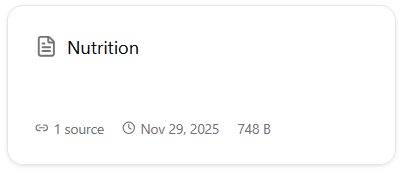
Each memory card shows:
- Name - The memory document title
- Sources - How many conversations contributed to this memory
- Created - When the memory was created
- Size - The document size
Memory Actions
From the memory page, you can:
- Delete individual memory documents
- Create a new memory document manually
- Generate Context from your memories
Creating Memories Manually
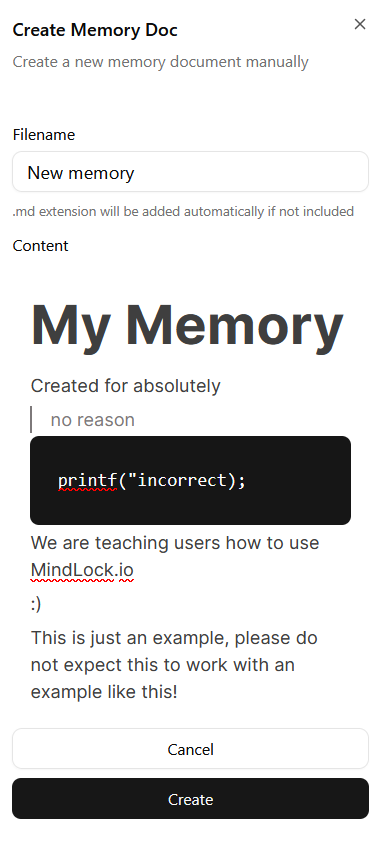
Click Create (+) to add a new memory document:
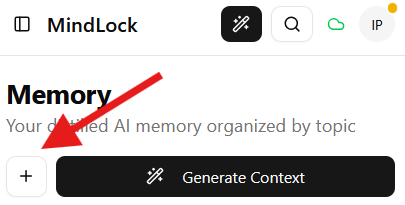
- Enter a name for your memory
- Use the block editor to write your content (familiar formatting tools)
- Click Create to save, or Cancel to discard
Viewing Memory Details
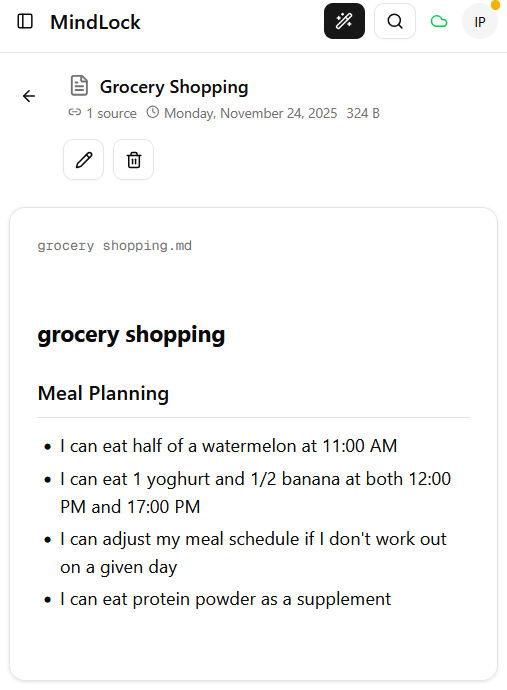
Click on any memory to see its full content:
- Header with name, source count, creation date, and size
- Full content of the memory document
- Actions: Back, Edit, Delete
Editing Memories
Click Edit to modify a memory:
- Use the block editor to add, remove, or change content
- Click Save to keep your changes
- Click Cancel to discard changes
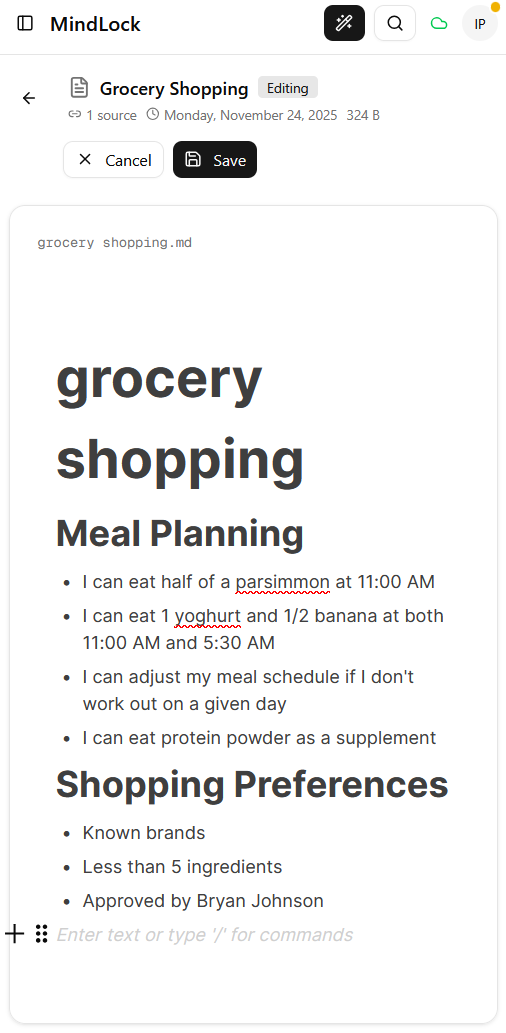
You have full control over your memories. Edit them to add your own notes, correct information, or remove anything you don't want stored.
First-Time Setup: Loading a Local Model
Important: If you're using Local AI for the first time, you'll need to load a model before distilling.
- Go to Settings
- Select your preferred local AI model
- Click to load the model (this downloads it to your device)
Once loaded, you can distill conversations and generate context using Local AI.
See the Settings tutorial for more details on model selection.
Next Steps
With your memories created, learn how to generate context to use in new AI conversations.